
7 Open-Source macOS Apps to Elevate Productivity and System Control

Open-source tools offer transparent system control and custom workflows on macOS. This guide covers seven utilities on GitHub for recording, window layout, monitor controls, image upscaling, menu bar utilities, and terminal emulation, detailing features, steps, and compatibility.
1. Cap
Cap is an open-source alternative to Loom for macOS and Windows, capturing displays, webcams, and audio locally with instant sharing, local editing, Docker-based application self-hosting, and S3-compatible object storage options.
Key documented capabilities:
- Dual recording workflows: Switch between
Instant Modefor fast link generation andStudio Modefor local editing with zooms and trimming. - Hosting and storage: Self-host the web platform and backend services via
Docker Compose, while connecting S3-compatible object storage (such as AWS S3 or Cloudflare R2) for media assets. - Cap AI: Generate automatic titles, summaries, and chapter markers.
Getting started:
- Download Cap for macOS or Windows.
- Launch the app and pick Instant or Studio Mode.
- Record, then copy the link or export locally.
Suggested scenario: Engineers documenting bugs can capture defect walkthroughs and paste links into issues, keeping video assets on self-managed infrastructure.
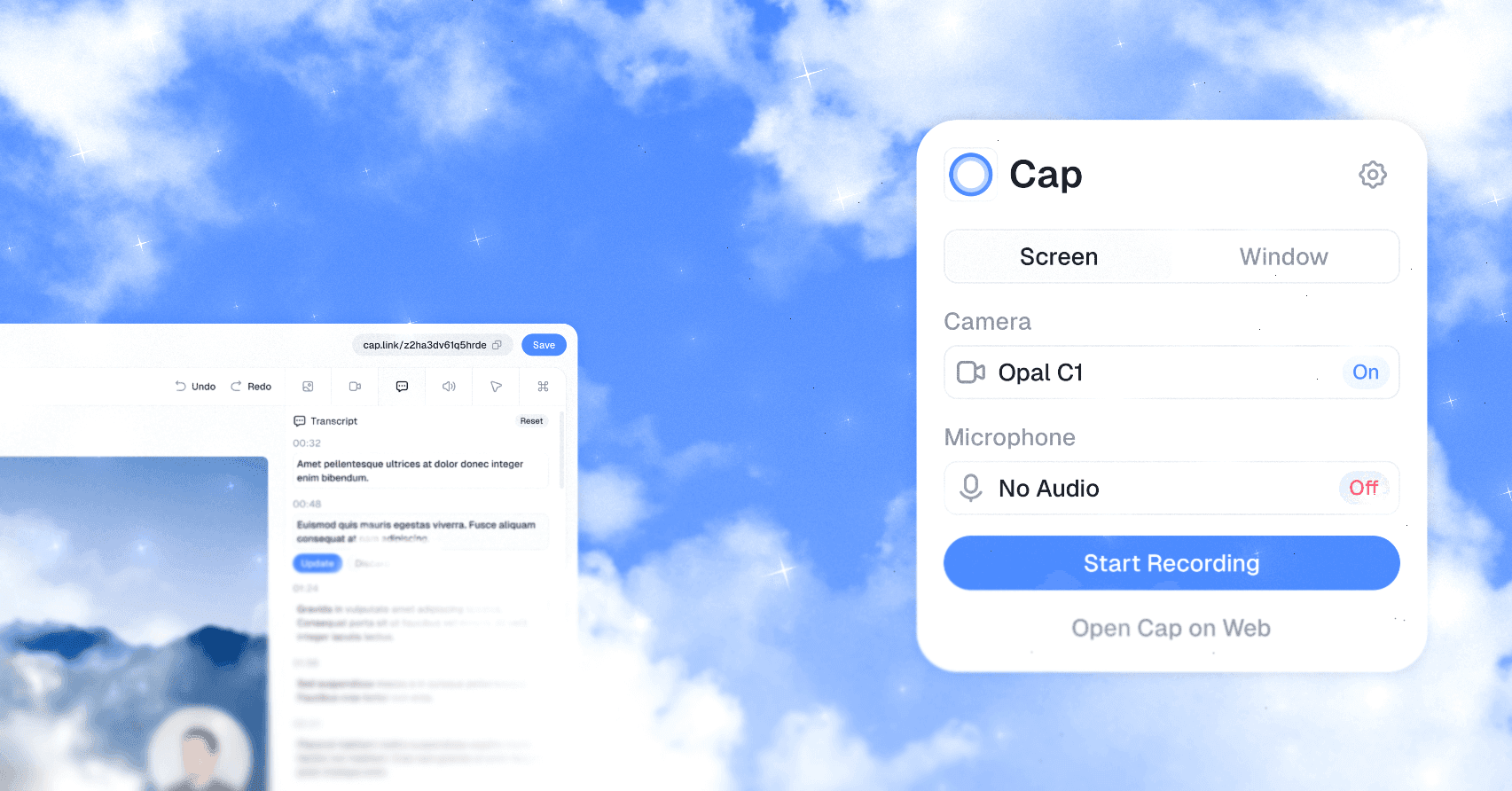
Compatibility limits: Cap's desktop app supports macOS and Windows. Self-hosting requires deploying Docker Compose containers and connecting appropriate S3-compatible storage buckets. The official preview from the Cap GitHub repository depicts the web editing interface beside recording controls.
2. Hop
Hop is an open-source macOS menu bar utility consolidating micro-tools into one app. It organizes features across four tabs, letting users toggle unneeded components to stop background execution.
Key documented capabilities:
- Spaces and timers: Group modules across four tabs and run dot-matrix countdowns supporting Pomodoro intervals like 25/5.
- Task tracking and automation: Log tasks to an editable JSON ledger with automation support via
hop://commands. - Clipboard and media: Retain up to 300 clipboard items without storing passwords, plus local image and video conversion.
Getting started:
- Install via
brew install --cask antonyshakirov/tap/hopor downloadHop.dmg. - Drag modules into preferred spaces across the four tabs.
- Switch off unused modules using their individual power buttons.
Suggested scenario: Freelance consultants can track billable project milestones in an inspectable local ledger, prevent sleep during lengthy exports, and batch-convert media locally without third-party web tools.
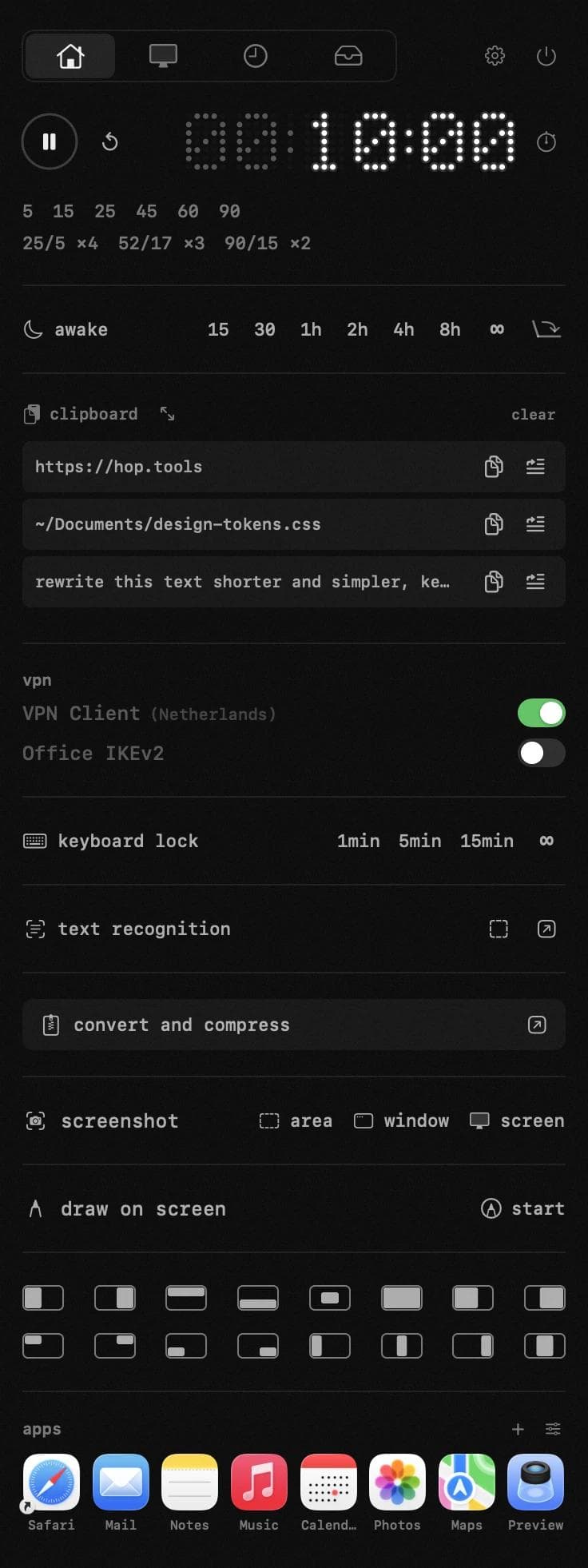
Compatibility limits: Hop requires macOS 14 or later, with no support for earlier releases. The official screenshot from the Hop GitHub repository illustrates the timer, keep-awake controls, and clipboard history interface.
3. Loop
Loop is an open-source macOS window manager centered on a radial menu. Activated by a trigger key, it lets users reposition and resize application windows via pointer movements while previewing layouts beforehand.
Key documented capabilities:
- Radial menu and previews: Direct windows into screen layouts with cursor gestures while an interactive overlay outlines placement boundaries.
- Cycle commands: Step through halves, thirds, and centers by repeatedly pressing the trigger combination or clicking.
- Window stashing: Hide idle windows at the display edge to declutter workspaces, retrieving them upon cursor hover.
Getting started:
- Install via Homebrew using
brew install loopor download the latest release archive. - Select your preferred trigger key within behavior settings.
- Hold the trigger key and guide your pointer outward to snap windows.
Suggested scenario: Developers on laptop screens can tile code editors and browser viewports with swift cursor gestures, eliminating manual window border dragging.
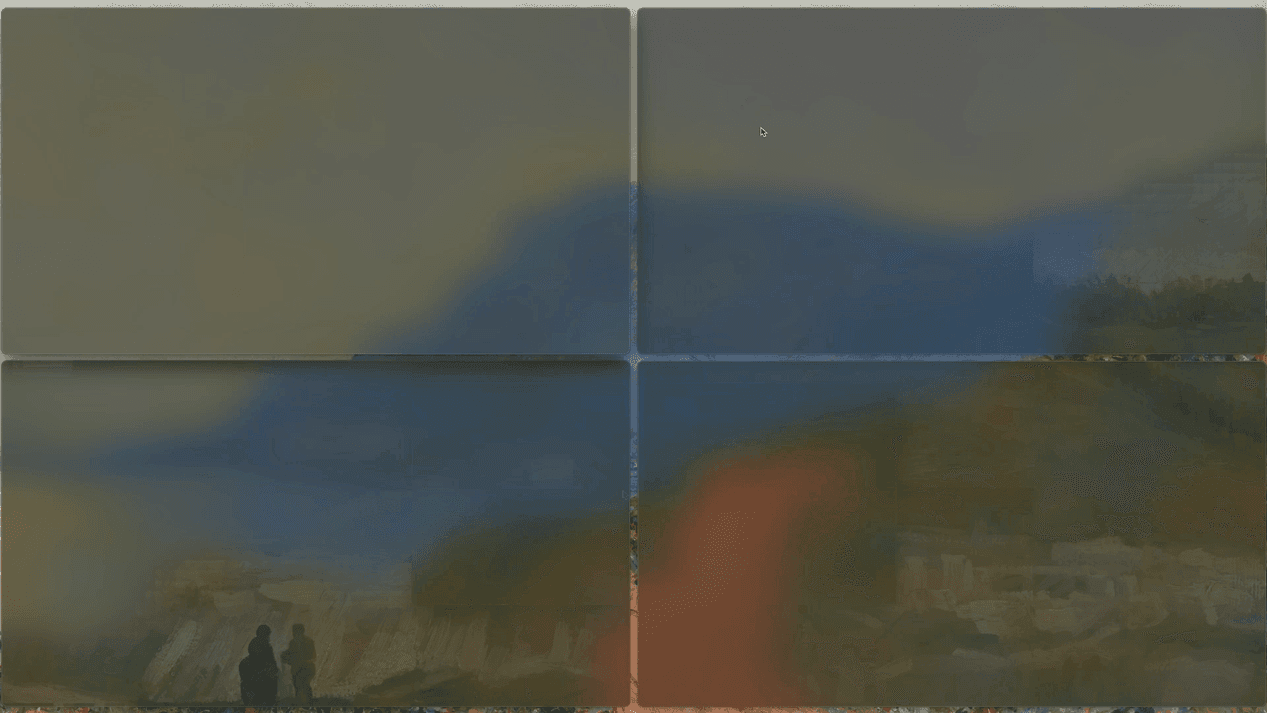
Compatibility limits: Loop requires macOS 13 or newer; using Caps Lock as trigger requires remapping keys in macOS System Settings. The visual preview is a still at 5 seconds from the official demonstration in the Loop GitHub repository.
4. MonitorControl
MonitorControl is an open-source macOS utility that controls external display brightness, contrast, and audio volume. Communicating via DDC/CI, it connects non-Apple external monitors with native Apple keyboard keys and on-screen display (OSD) feedback.
Key documented capabilities:
- Hardware DDC and software dimming: Adjust physical backlight over DDC/CI and use software shading to dim displays down to black.
- Sensor synchronization: Match external monitor luminance to ambient lighting detected by MacBook light sensors.
- Native media keys: Control external screens with standard Apple keyboard keys or menu bar sliders.
Getting started:
- Install via
brew install --cask monitorcontrolor download the.dmgpackage. - Grant Accessibility permissions in System Settings to enable keyboard key interception.
- Adjust brightness using standard Apple keyboard keys or menu bar sliders.
Suggested scenario: Designers docking MacBooks to third-party monitors can synchronize external screen brightness with built-in displays as room lighting shifts, avoiding awkward physical monitor buttons.
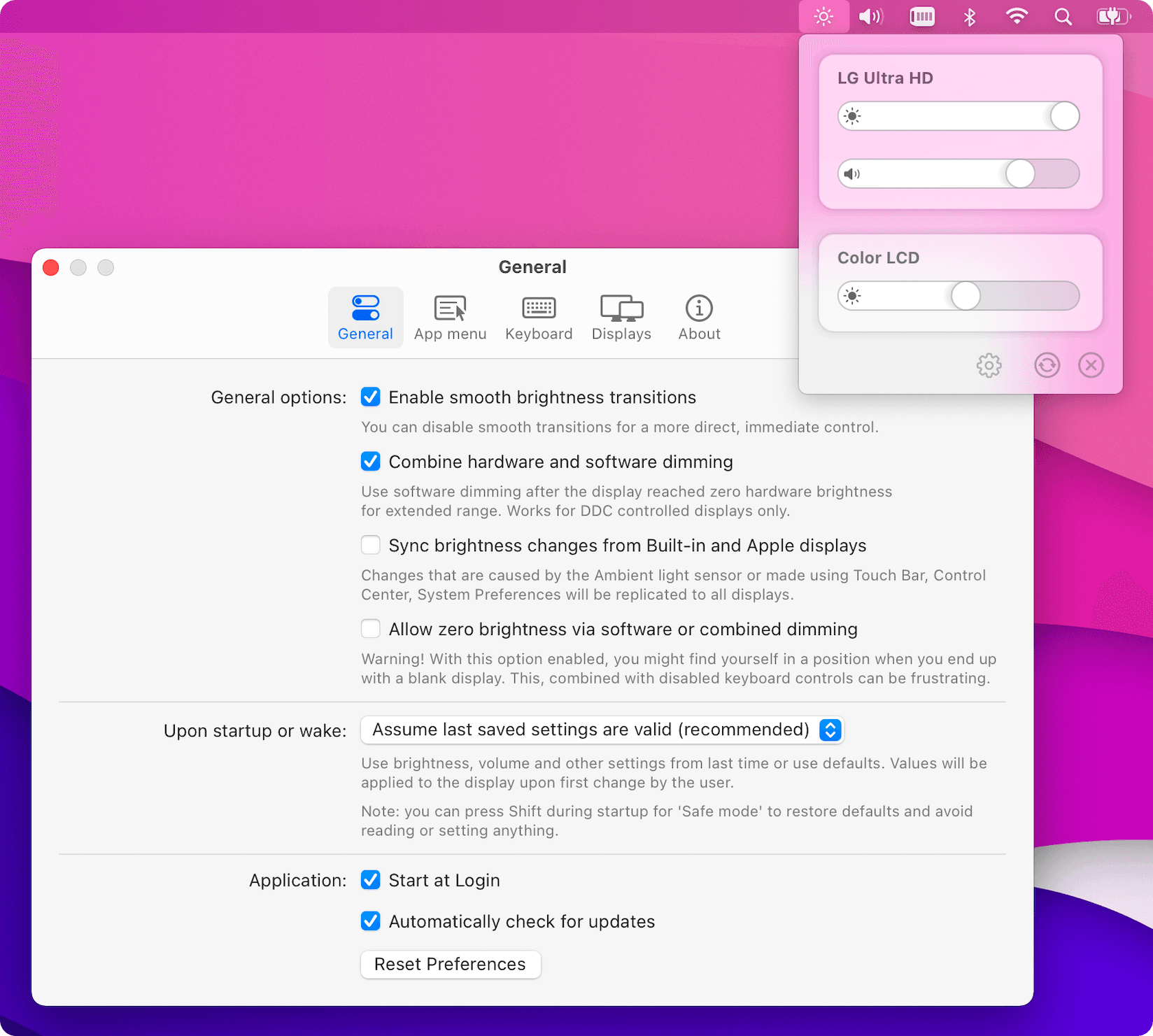
Compatibility limits: Built-in HDMI ports on 2018 Mac mini, M1 Macs, and base M2 Mac mini lack hardware DDC support, requiring software dimming; OSD percentage values do not update on macOS Tahoe. The official screenshot from the MonitorControl GitHub repository displays monitor sliders beside general preferences.
5. Upscayl
Upscayl is a free, open-source AI image upscaler for Linux, macOS, and Windows. Built on the Real-ESRGAN architecture and Vulkan engine, it sharpens low-resolution images locally without transmitting files to remote cloud servers.
Key documented capabilities:
- Local neural models: Enlarge images up to 4x using pre-packaged neural models including Remacri, High Fidelity, and UltraSharp.
- Batch directory processing: Upscale multiple image files simultaneously in automated batches to handle large asset collections.
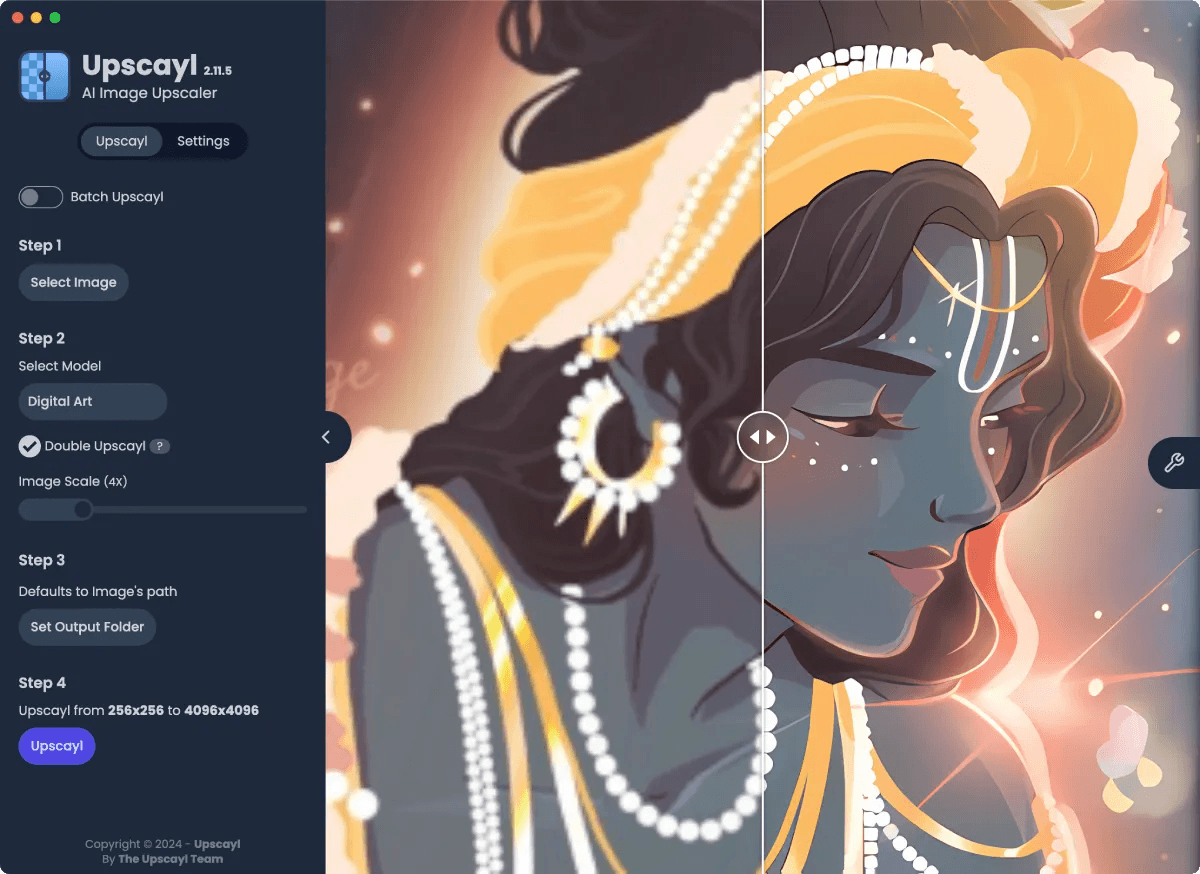
- Split-view comparison: Inspect before-and-after results directly in the desktop interface using an interactive comparison slider.
Getting started:
- Install using
brew install --cask upscaylon macOS or download your operating system's binary. - Open the application, drag in your target image, and select an AI model.
- Click Upscayl and wait for processing to finish before exporting.
Suggested scenario: Web designers updating legacy graphic assets can upscale low-resolution product photos and icons to crisp high-DPI assets locally, avoiding recurring cloud AI subscription fees.
Compatibility limits: Upscayl requires macOS 12 or later and a Vulkan-compatible GPU, failing on most integrated GPUs, and cannot correct out-of-focus or severely blurred photographs. The official screenshot from the Upscayl GitHub repository displays model controls and the interactive split comparison slider.
6. Vorssaint
Vorssaint is an open-source macOS utility suite that consolidates audio management, window organization, and hardware monitoring behind one menu bar icon. Built local-first without tracking or subscriptions, it replaces numerous separate utilities.
Key documented capabilities:
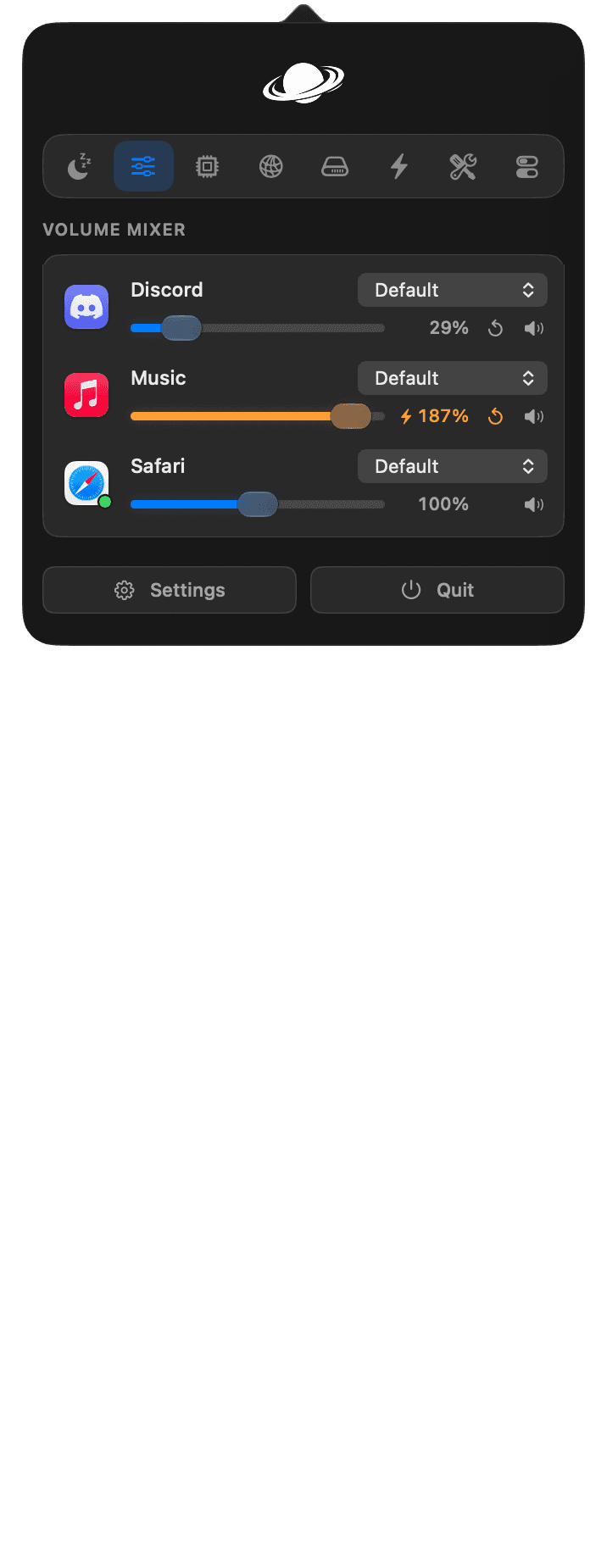
- Per-application audio mixer: Adjust individual application volume levels, boost quiet audio beyond 100% without extra audio drivers, and route outputs.
- Hardware telemetry and fans: Monitor CPU/GPU load, thermal sensors, and battery health, with customizable fan speed curves.
- Dock previews and window snapping: Preview open windows upon Dock hover, maximize windows without creating new Spaces, and snap layouts.
Getting started:
- Download and open the release package on macOS.
- Enable your preferred modules to keep unused tools from loading.
- Grant permissions requested by the specific features you choose to enable.
Suggested scenario: Remote professionals in video conferences can lower background music volume while boosting faint speaker audio from meeting software, maintaining clear dialogue without modifying master system volume.
Compatibility limits: Vorssaint supports only macOS. Certain optional modules require specific system privileges; for example, the Music app blocker uses Accessibility permissions to intercept accidental playback-button presses that trigger Apple Music launches. The official screenshot from the Vorssaint GitHub repository illustrates the per-application volume mixer with Discord, Music, and Safari sliders.
7. Ghostty
Ghostty is an open-source terminal emulator in Zig, emphasizing platform-native integration. It features a multi-threaded architecture using SwiftUI and Metal on macOS, the GTK UI toolkit with OpenGL on Linux, and the embeddable libghostty library.
Key documented capabilities:
- Platform-native rendering: Render text via Metal on macOS and OpenGL on Linux, leveraging CPU SIMD instructions for fast sequence parsing.
- Windowing and split panes: Organize terminal sessions with native split panes, tabs, custom tab coloring, and window controls.
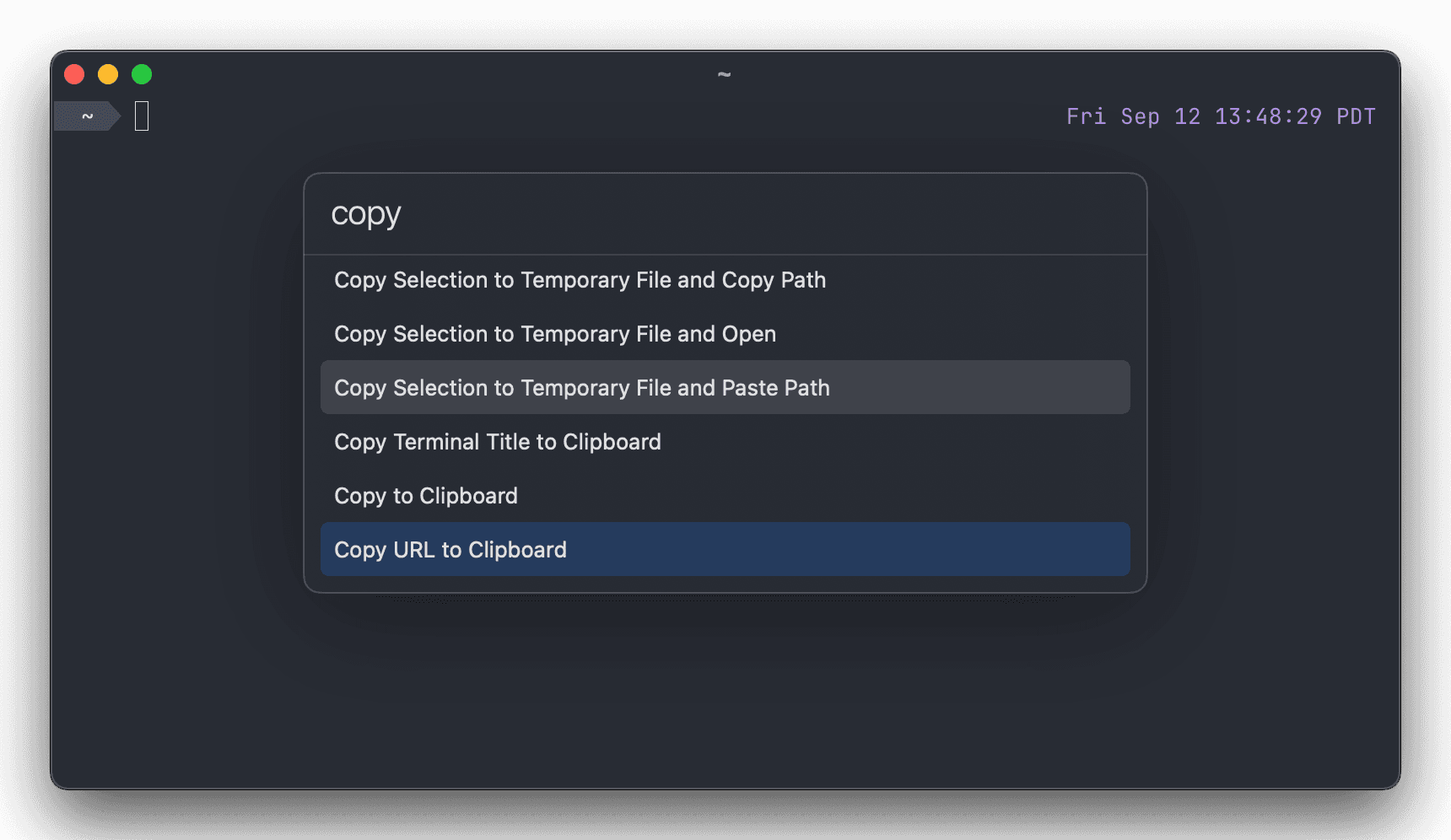
- Command palette: Access actions and shortcuts through a searchable command palette, with full support for Kitty graphics protocols.
Getting started:
- Download the macOS installer from the official website or install the appropriate Linux package.
- Open the terminal and press
Cmd+Shift+Pon macOS to open the command palette. - Organize your workspace using split panes or custom keybindings.
Suggested scenario: Programmers using terminal editors like Neovim benefit from fluid scrolling across logs and inline diagnostic graphics, maintaining responsive typing while build commands run in adjacent splits.
Compatibility limits: Graphical frontends are limited to macOS and Linux without an official Windows GUI, requiring Metal or OpenGL capable hardware. Performance depends on machine architecture and configuration, with no guaranteed latency levels. The official release screenshot from the Ghostty website repository depicts the command palette with copy actions over terminal output.
Tool Selection Guide
- Window Management:
Loopprimarily focuses on gesture-directed radial window placement, whereasHopandVorssaintinclude basic window snapping within their broader utility sets. - Menu Bar Suites:
Hopprimarily targets daily productivity routines like Pomodoro timers, JSON task tracking, and media conversions, whileVorssaintcenters on per-app audio mixing, fan controls, and system telemetry. - Targeted Utilities:
MonitorControlfocuses on hardware-level external screen controls,Upscaylhandles offline neural image upscaling,Capprovides video capture workflows, andGhosttyoperates as a fast, native terminal emulator.
Original Sources and References
This guide draws directly from upstream project repositories and official documentation, originating from the original X post by Noah Elhadedy and its attached video.
Related Articles
View all articles →
Exploring Bencho: Interactive UI Component Inspiration
Bencho introduces a visual catalog of interactive UI blocks that developers and designers can test live, offering an alternative to static design mockups.
Deterministic Generative UI Architecture: Constraining AI to Enterprise Design Systems with Next.js and shadcn/ui
How to architect deterministic generative UI that respects enterprise brand governance: binding LLM outputs to validated Zod schemas, streaming React Server Components in Next.js 16, and handling bidirectional RTL layouts.
Playwright MCP and Autonomous Browser Agents: Building Resilient, Deterministic QA Pipelines in 2026
An authoritative engineering guide to Playwright MCP: leveraging accessibility trees (AXTree) for deterministic UI testing, sandboxing test runners, and converting exploratory AI agent sessions into robust TypeScript regression suites.
Want this for your product?
Send a short note about your project. We will review it and explain the next useful step.
Contact Our Team